How to manage UTM templates in a workspace?
UTM stands for Urchin Tracking Module. It refers to a system of URL parameters used to track the effectiveness of online marketing campaigns.
UTM tracking involves adding specific parameters to a URL. These parameters help identify where website traffic comes from and how visitors interact with your site. It’s crucial for analyzing the performance of campaigns across email, social media, ads, etc.
Common UTM parameters:
-
utm_source: Identifies the source of the traffic, e.g.
utm_source=facebook -
utm_medium: Tells the medium used in the campaign, e.g.
utm_medium=social,utm_medium=email -
utm_campaign: Names the campaign, e.g.
utm_campaign=spring_sale -
utm_term: Tracks specific keywords:
utm_term=running+shoes -
utm_content: Differentiates similar content or links within the same ad or email, e.g.
utm_content=header_linkvsutm_content=footer_link
Benefits of UTM tracking:
-
See which campaigns drive the most traffic
-
Track ROI of paid and organic marketing
-
Compare performance across channels (email vs social vs paid search)
UTM templates make it easy to maintain consistent and trackable campaign links across your team. This guide explains how to create, edit, apply, and delete UTM templates within your workspace.
What is a UTM template?
A UTM template is a reusable format that pre-defines UTM parameters (like source, medium, campaign, term, and content) for your links. Templates help ensure everyone in your team uses standardized tracking information, improving campaign reporting and attribution accuracy.
Accessing UTM templates
To view and manage UTM templates:
-
Switch to the workspace you want to manage UTM templates.
-
Select the UTM Templates menu in the sidebar.
Here, you’ll see a list of all available templates within your workspace.
Creating a new UTM template
-
Click the Create template button.
-
Enter a Template Name (e.g.,
Facebook Ads – Q3).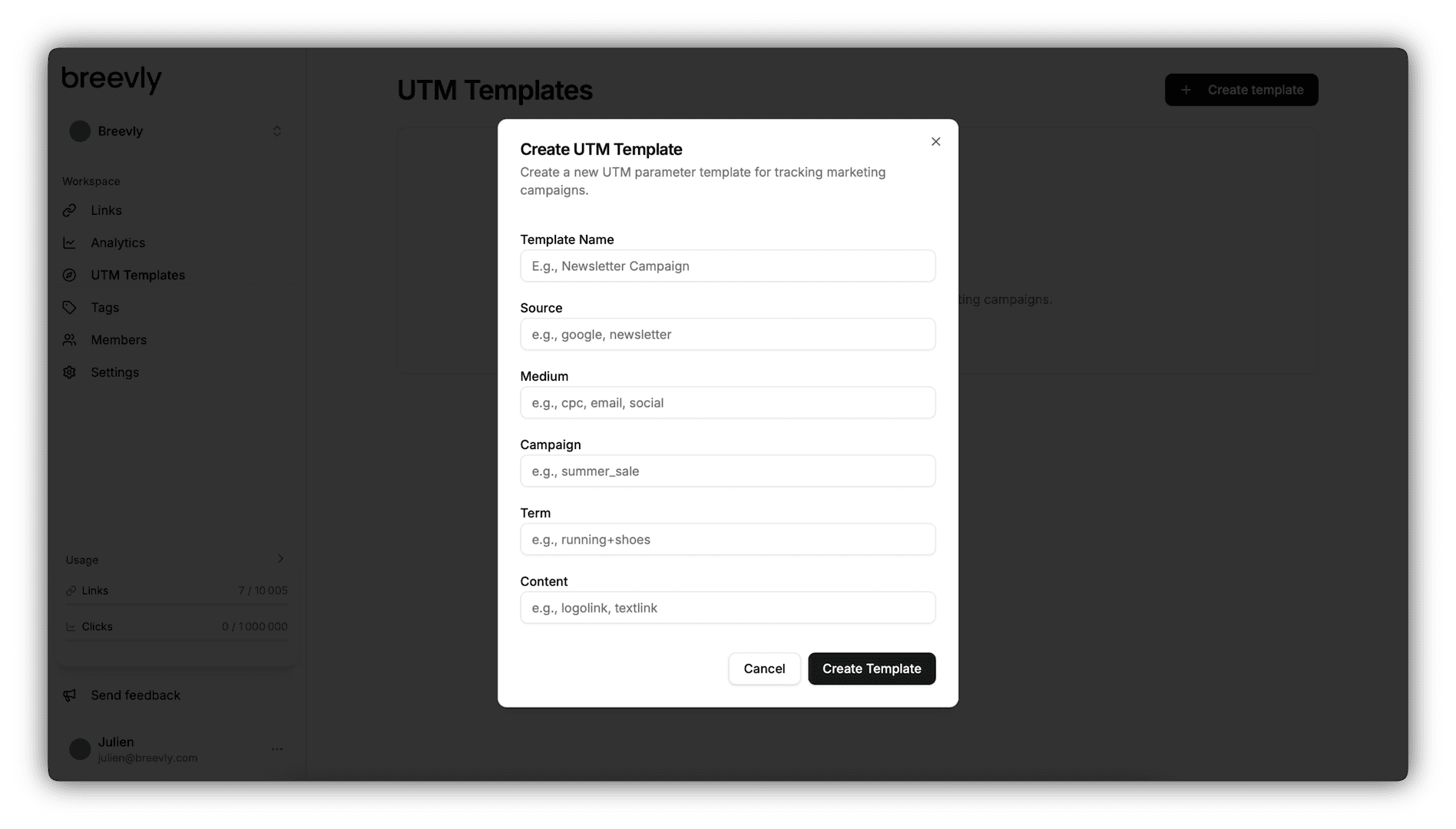
-
Fill in the UTM parameters you want to pre-define, they are all optional.
-
Click Create Template.
Editing an existing template
-
From the UTM Templates list, click the icon next to the template you want to edit.
-
Select Edit.
-
Make your changes and click Update Template.
Changes to a template do not retroactively affect links that already used it.
Deleting a UTM template
-
From the UTM Templates list, click the icon next to the template you want to remove.
-
Select Delete.
-
Confirm deletion.
Deleting a template will not remove UTMs from existing links — it only prevents future use.