How to add UTM parameters to a link?
UTM parameters help you track where your traffic is coming from and how your marketing campaigns are performing. In our platform, you can easily add UTM parameters to any link either by using a pre-set template or by manually entering them in the UTM template section of the short link form.
What Are UTM Parameters?
UTM stands for Urchin Tracking Module. These are tags you add to a URL to pass information about traffic sources to analytics tools like Google Analytics.
Here are the most commonly used UTM parameters:
| Parameter | Description |
|---|---|
utm_source | Identifies the source (e.g., newsletter, Facebook) |
utm_medium | Describes the medium (e.g., email, CPC) |
utm_campaign | Names the campaign (e.g., spring_launch) |
utm_term | Tracks paid search keywords |
utm_content | Differentiates similar content or links |
How to Add UTM Parameters
Open the link form
From your dashboard, you can either:
- Create a new link by clicking on the Create link button
- Open an existing link by clicking on any row in the list
Open the UTM Parameters options
Scroll to the link options and click on UTM Parameters
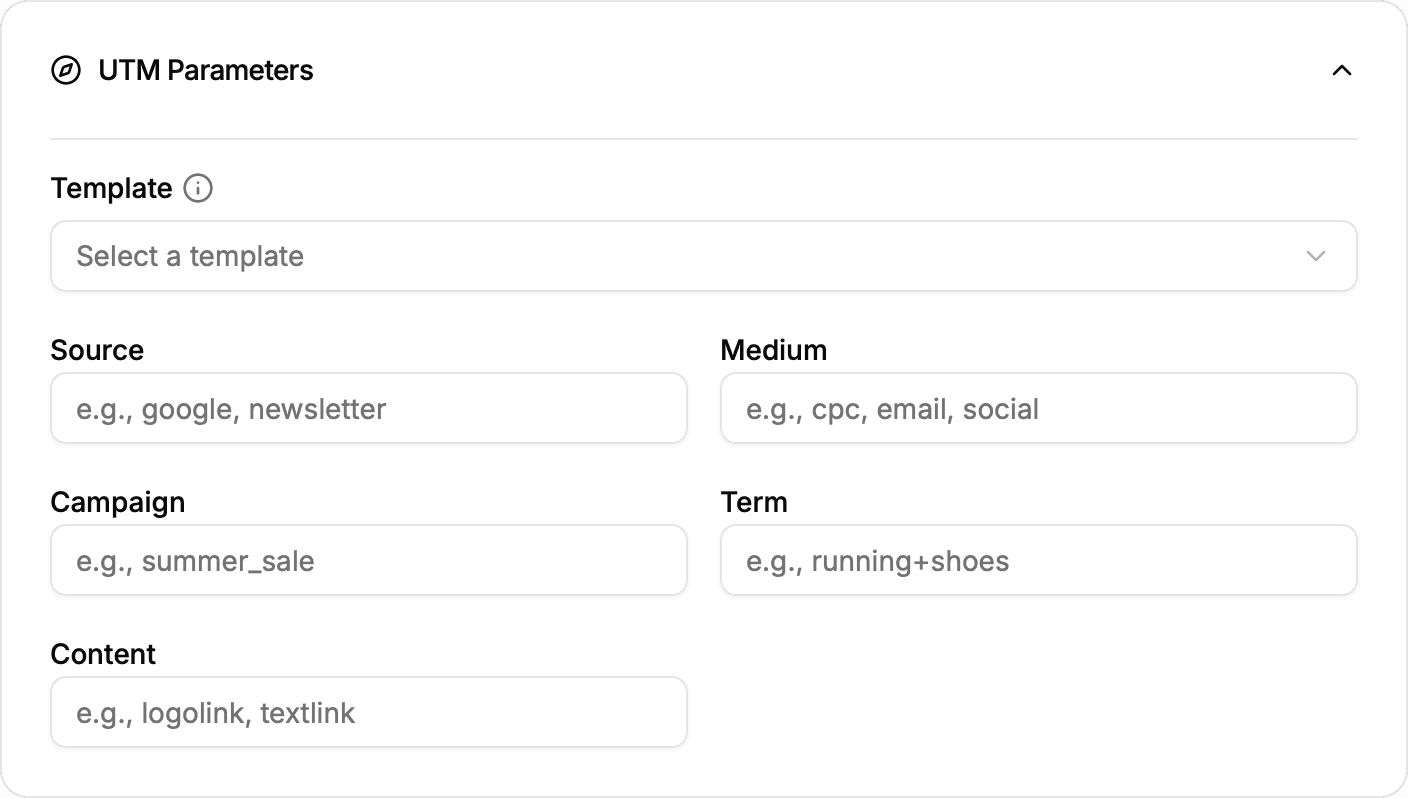
Option 1: Use a UTM Template (Recommended for Consistency)
Open the Template dropdown and choose an existing template if available.
Saves time, enforces naming consistency, and reduces manual errors.
Learn how to create UTM templates
Option 2: Manually add UTMs
- Enter any parameter values you need — all fields are optional.
- Watch the Destination URL update as you type; new parameters appear automatically. A preview is also available at the bottom of the current card.
Want to reuse these values? Click Create new template in the UTM Parameters card, name your template in the prompt, and select Save Template.