How to manage members in a workspace?
The number of members you can invite depends on your current plan.
Upgrade if you need additional seats.
Managing workspace members effectively is crucial for maintaining productivity, security, and collaboration within your team. This article walks you through how to add, remove, and update member roles in your workspace.
Access the workspace members page
-
Switch to the workspace you want to manage members
-
Select Members in the sidebar to view your team list.
Invite member
-
Click Invite Member
-
Enter the user’s email address
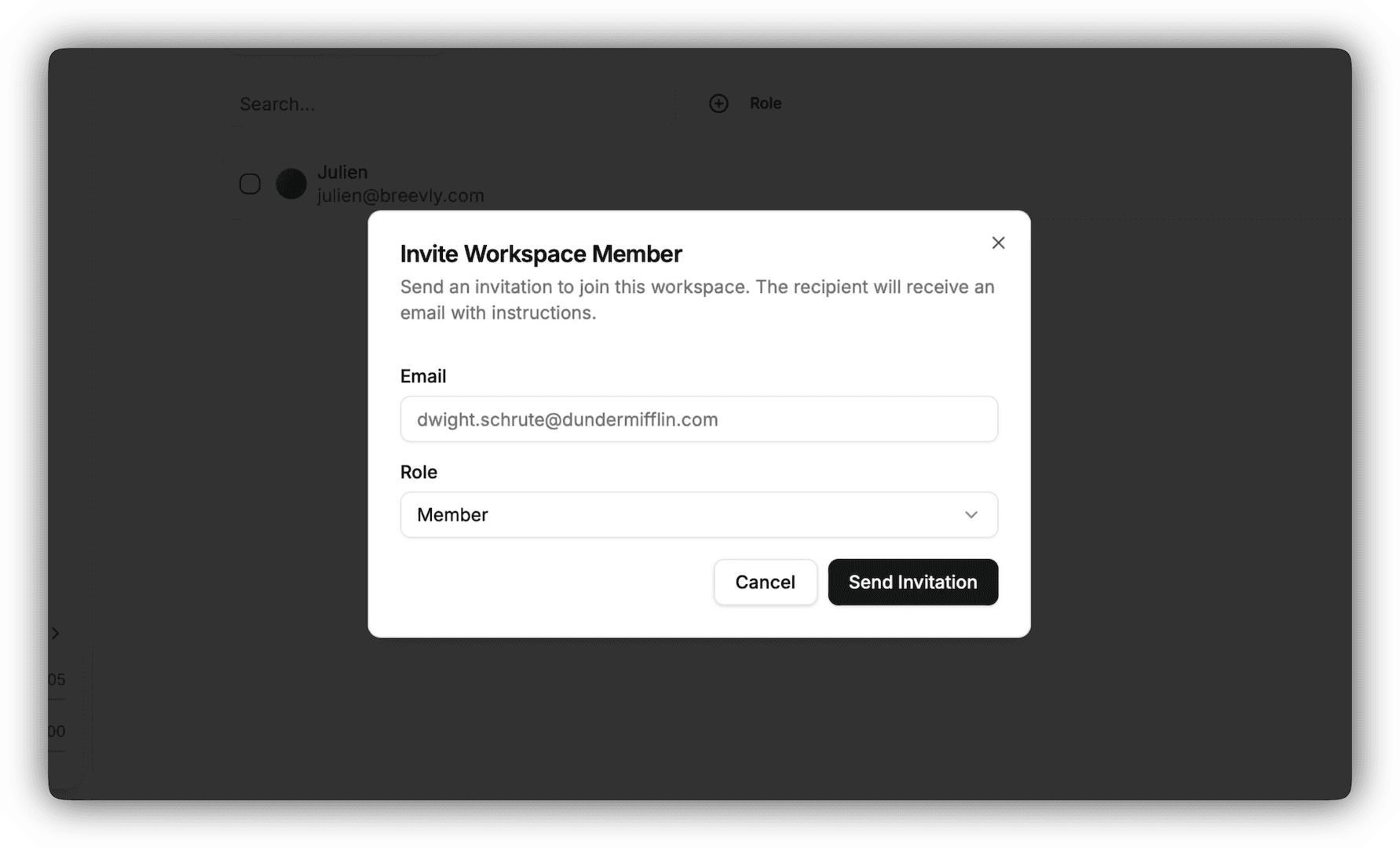
-
Choose a role between Member and Admin. Learn about workspace roles
-
Click Send Invitation
Invited users will receive an email invitation to join the workspace.
Change member role
Only workspace admins have permission to change a workspace member role
-
Find the member in the list
-
Click the more options button () in the row of the member
-
Select Change Role
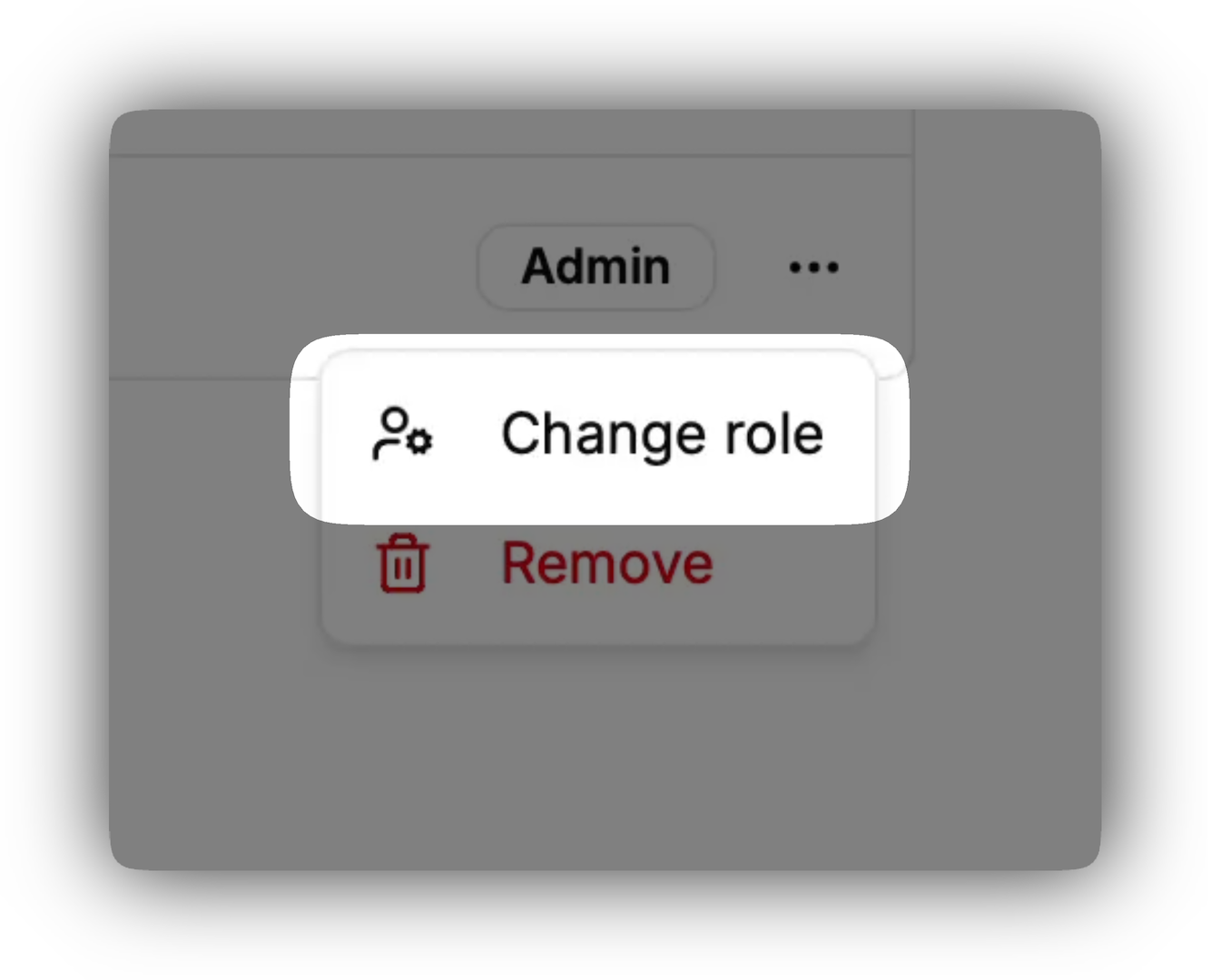
-
Choose a new role from the dropdown. Learn about workspace roles
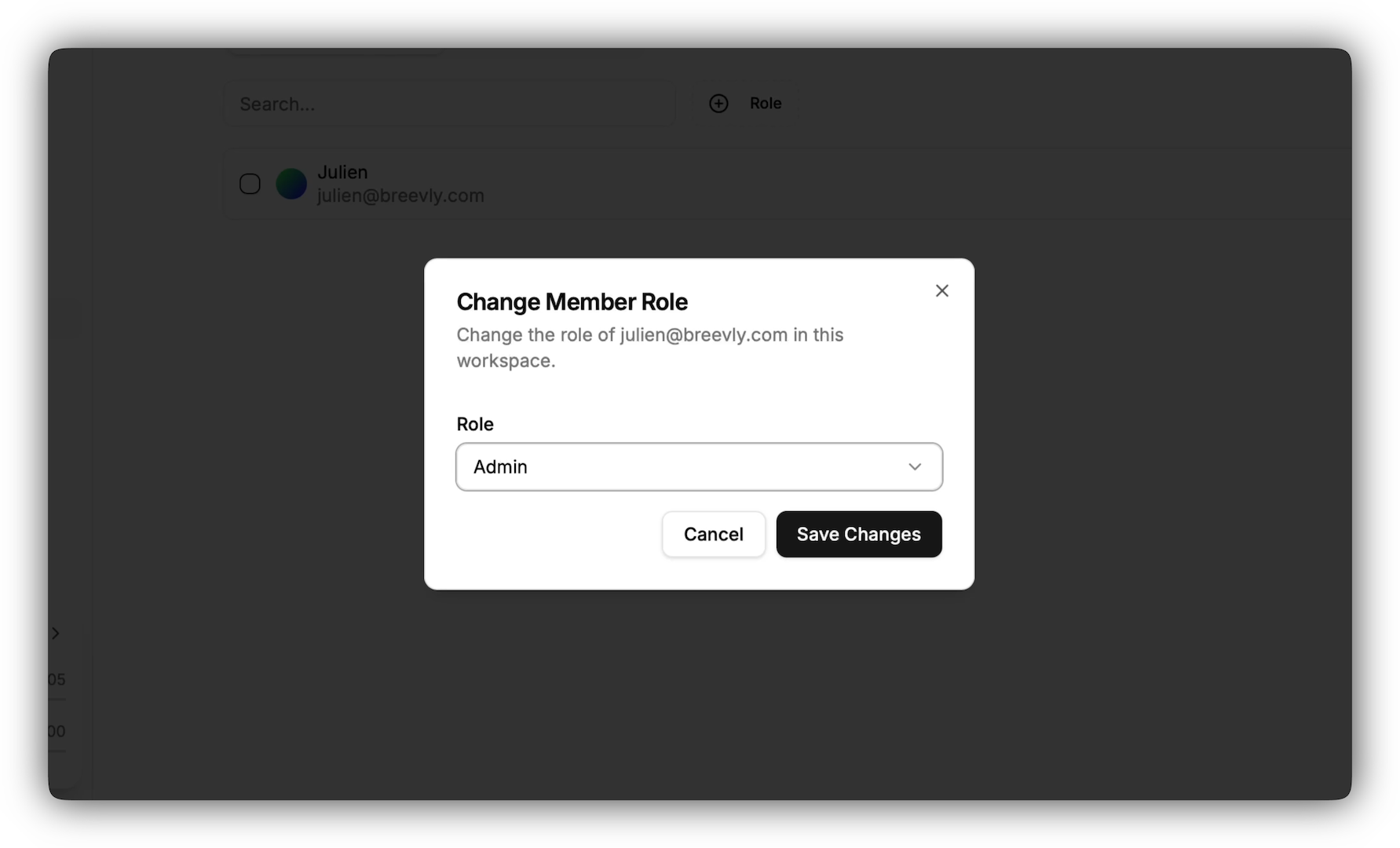
-
Click Update Role
Remove a member
Only workspace admins have permission to delete a member from a workspace
-
Find the member in the list
-
Click the more options button () in the row of the member
-
Select Remove
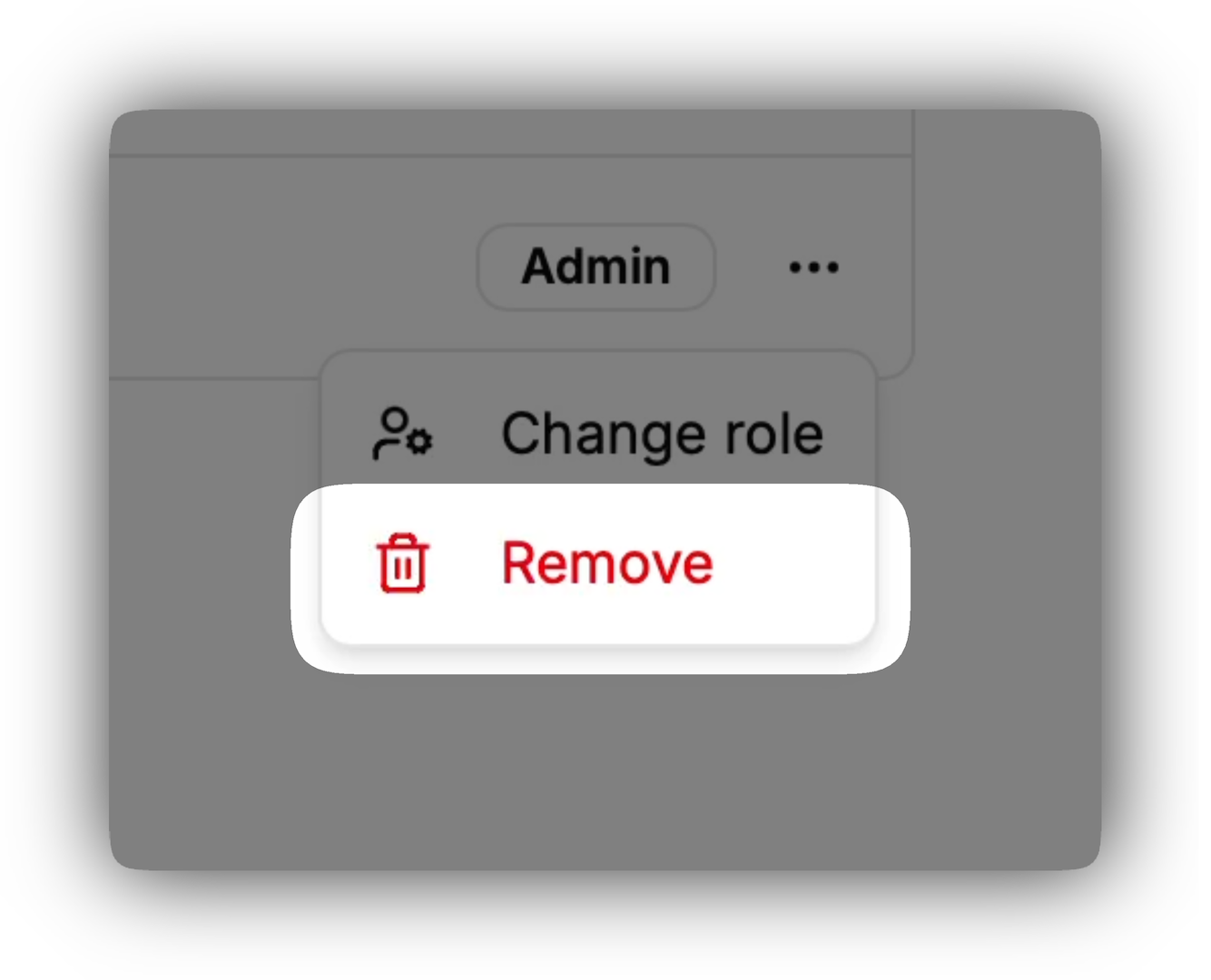
-
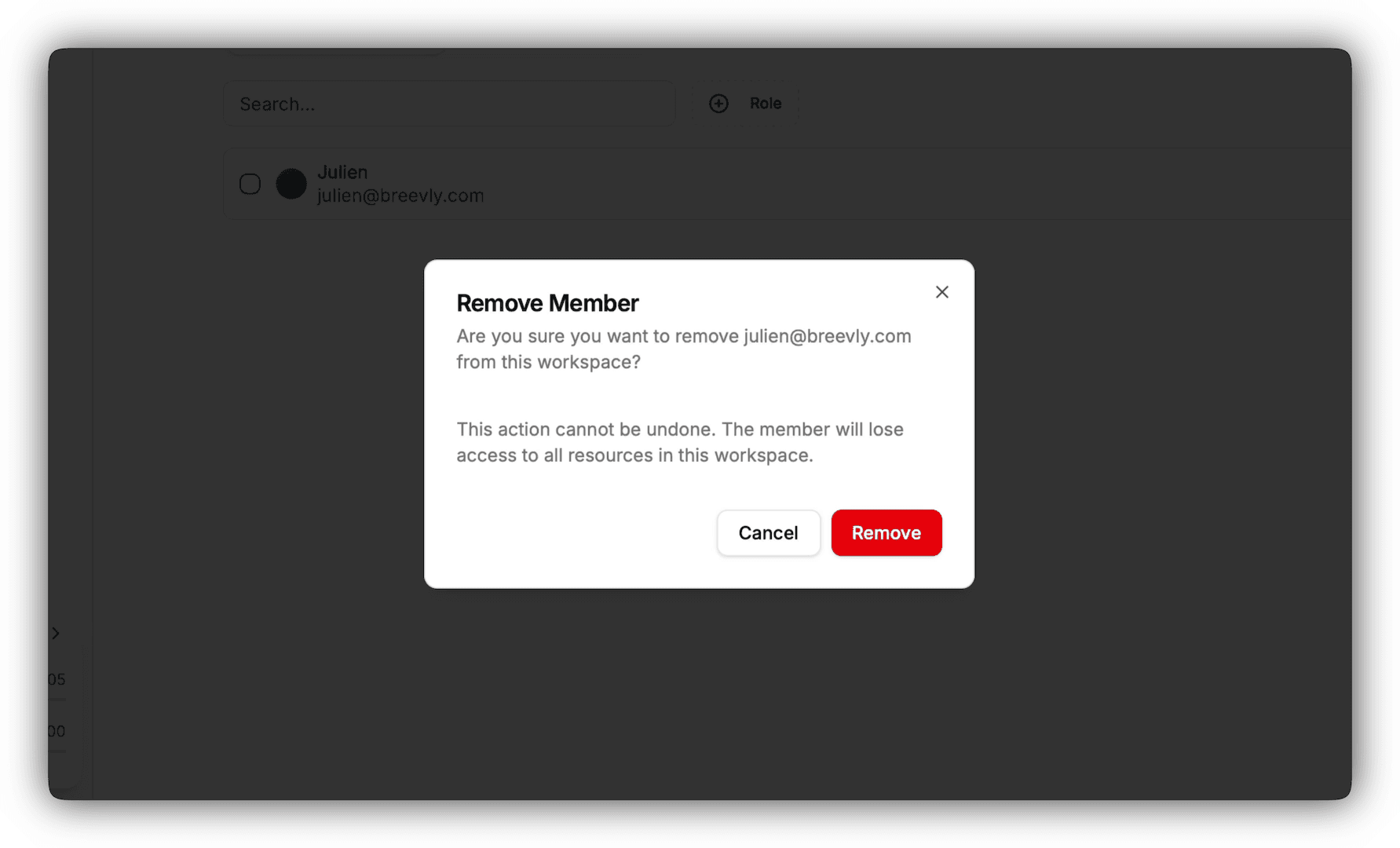
Click Remove
Best Practices
-
Regularly audit member roles and access
-
Remove inactive users to enhance security