How to delete a workspace?
If you no longer need a workspace and want to remove it permanently, follow these simple steps to delete your workspace safely.
Important notes
-
Deleting a workspace is permanent and cannot be undone.
-
All links, tags, analytics, and settings within the workspace will be permanently lost.
-
Only workspace admins or organization admins have permission to delete a workspace.
Delete a workspace from the workspace settings
Navigate to the workspace settings
-
Switch to the workspace you plan to delete
-
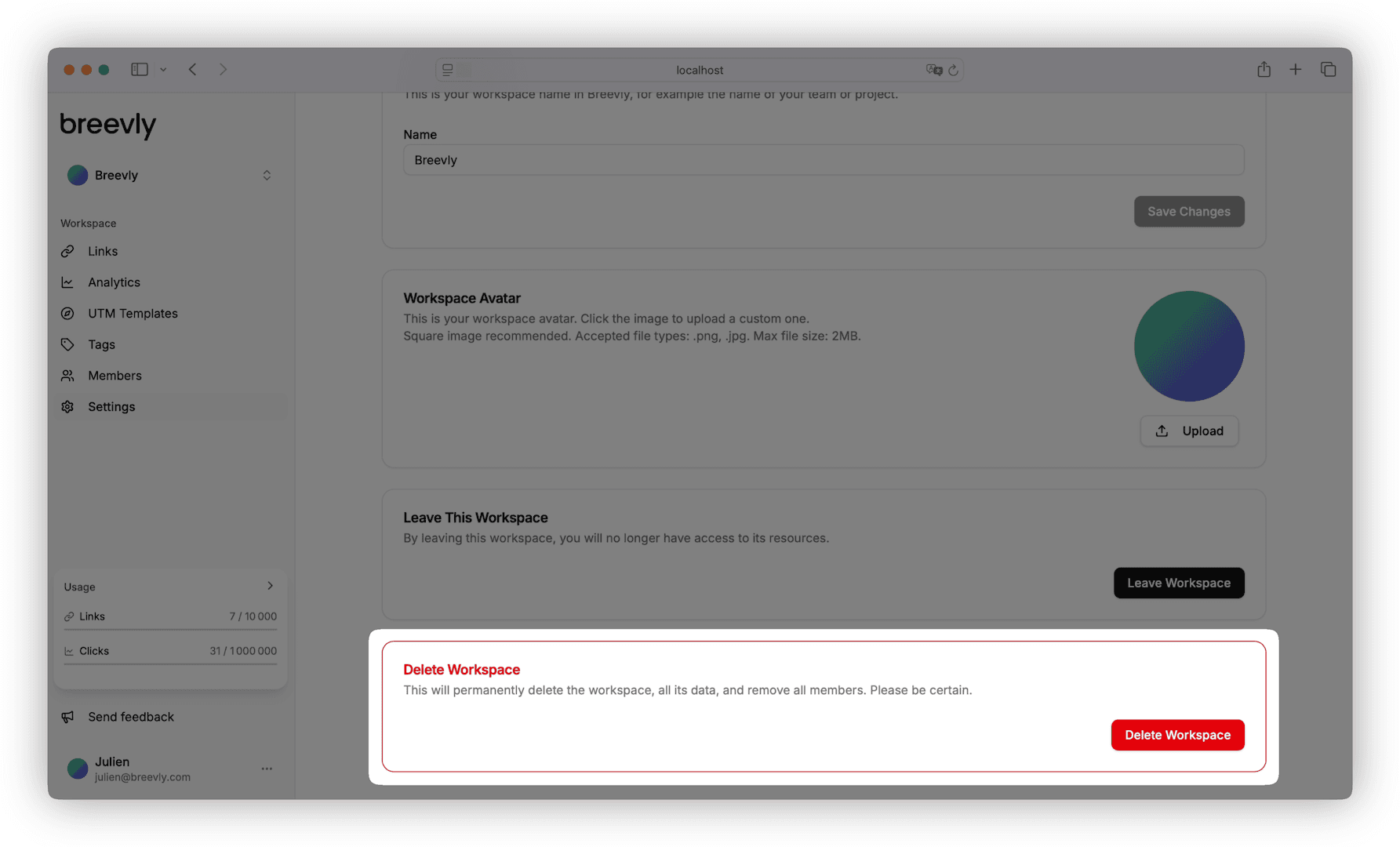
Click on the Settings menu item and find the Danger zone.
Confirm workspace deletion
-
Click Delete Workspace.
-
Type the workspace name to confirm.
-
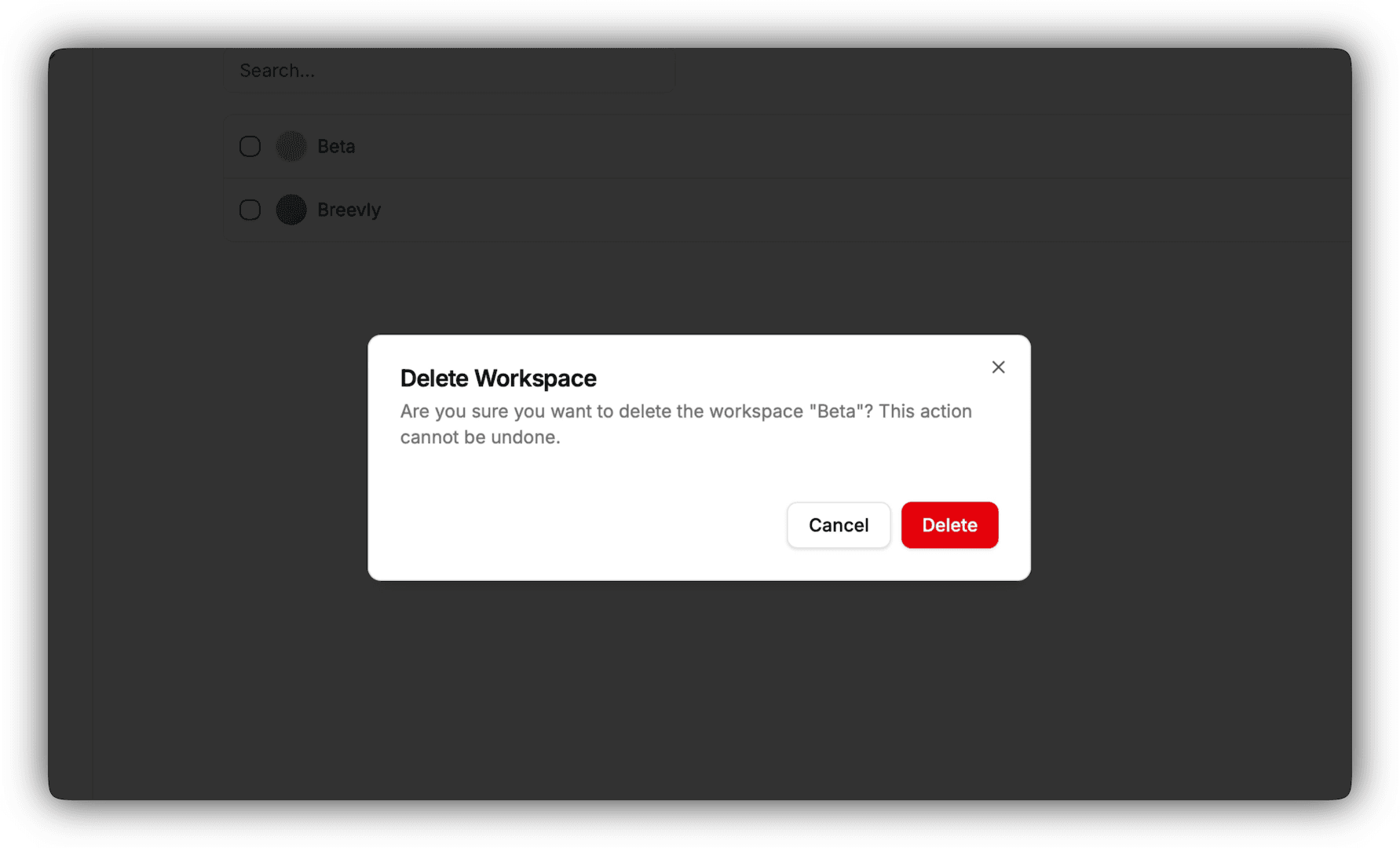
Click Delete in the dialog to remove the workspace.

Delete a workspace from the organization
Navigate to the workspaces page
-
Navigate to the organization view
-
Switch to the organization that owns the workspace you want to delete.
-
Click the Workspaces menu to view all workspaces in the organization.
Open the workspace actions
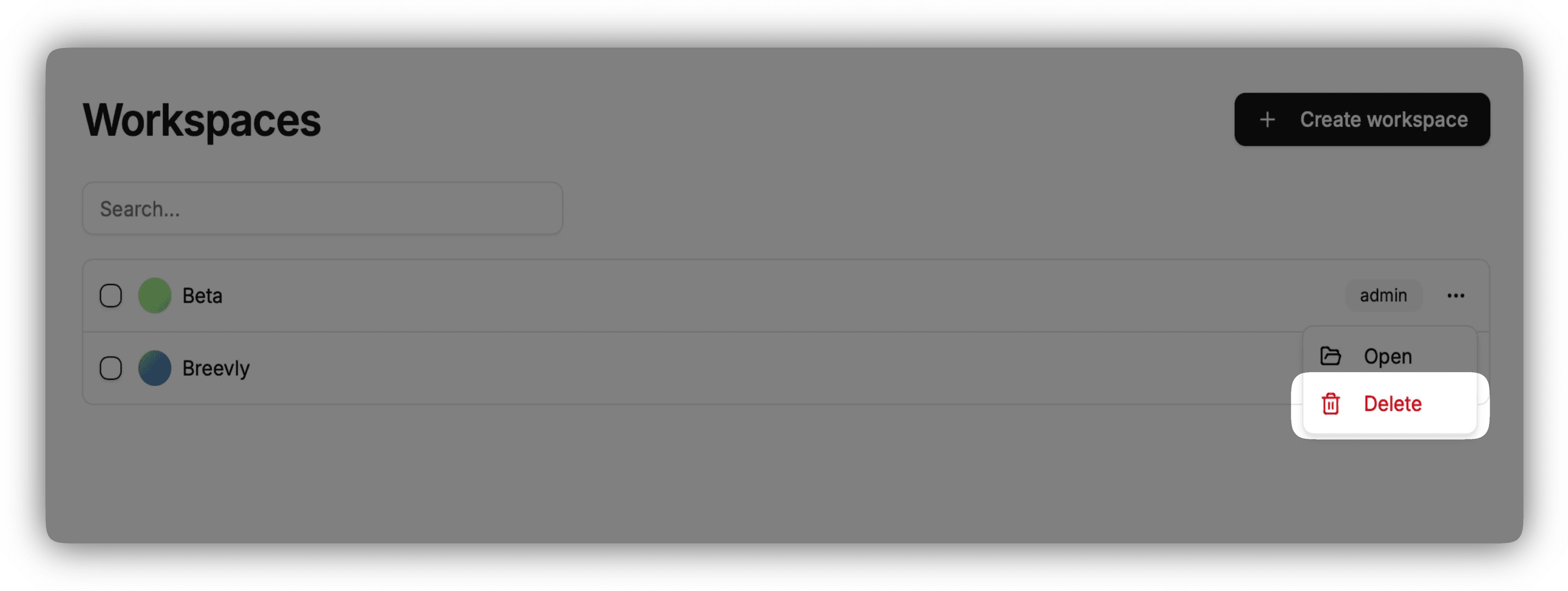
Click the more options button () on the row of the workspace you want to remove, then choose Delete.
Confirm workspace deletion
Click Delete Workspace.