How to create a short link?
Creating a short link is quick and easy, but configuring it properly ensures you get the most out of your link. Whether you’re customizing the destination for different devices or adding tracking parameters, this guide will walk you through the available options when setting up a short link.
Open the link form
On your dashboard, press on the Create link button
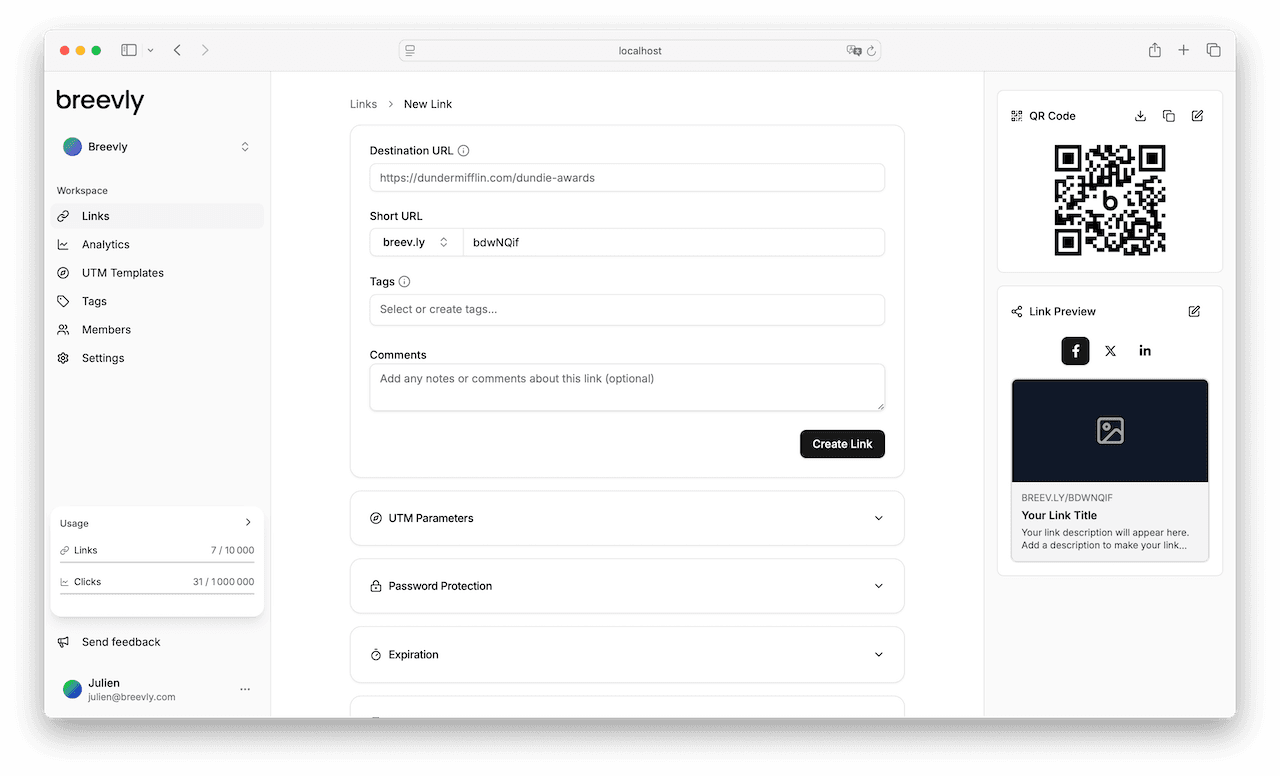
Enter the destination URL
Enter you target URL in the Destination URL input.
Make sure you set http:// or https:// at the beginning of the link.
When entering the URL, the open graph metadata will be fetched to update the link preview.
Edit the short link
By default, the domain is set to breev.ly and a slug is generated.
You can choose another domain if you configured a custom one in the organization settings.
You can also change the slug and choose a custom one, if available.
Learn more
Categorize with tags
Tags help you filter and find your links more easily, especially when managing multiple links.
They’re also useful for analytics and reporting, helping you segment results in dashboards and exports.
You can select existing tags from the dropdown or create new ones on the fly.
You can optionally add one or more tags to organize and categorize your link. Learn more
Add context with comments
Add a short comment to clarify the link’s purpose for teammates or your future self.
Comments appear in the link details, making it easier to understand campaigns, audiences, or usage.
Keep it concise; you can edit or remove it anytime.
Before clicking on Create Link, you can configure the following options:
- UTM Parameters: Apply UTM parameters to your link to track campaign performance. Learn more
- Password protection: Add a password to restrict access to your link. Learn more
- Expiration: Set a date or click limit to automatically deactivate your link after a certain point. Learn more
- Mobile Targeting: Send users to different destinations based on their device. Learn more
After creation, the destination URL is automatically scanned to detect malware, phishing, or adult content. If an issue is found, the link may be flagged or restricted to protect your audience.