How to manage members in a organization?
The number of members you can invite depends on your current plan.
Upgrade if you need additional seats.
Managing members efficiently is essential to maintaining a well-organized and productive team. Whether you’re adding new users, assigning roles, or removing inactive members, our tools make it simple to stay in control.
Access the organization members page
-
Navigate to the organization settings
-
Switch to the organization you want to manage members
-
Select Members in the sidebar to view your team list
Invite member
-
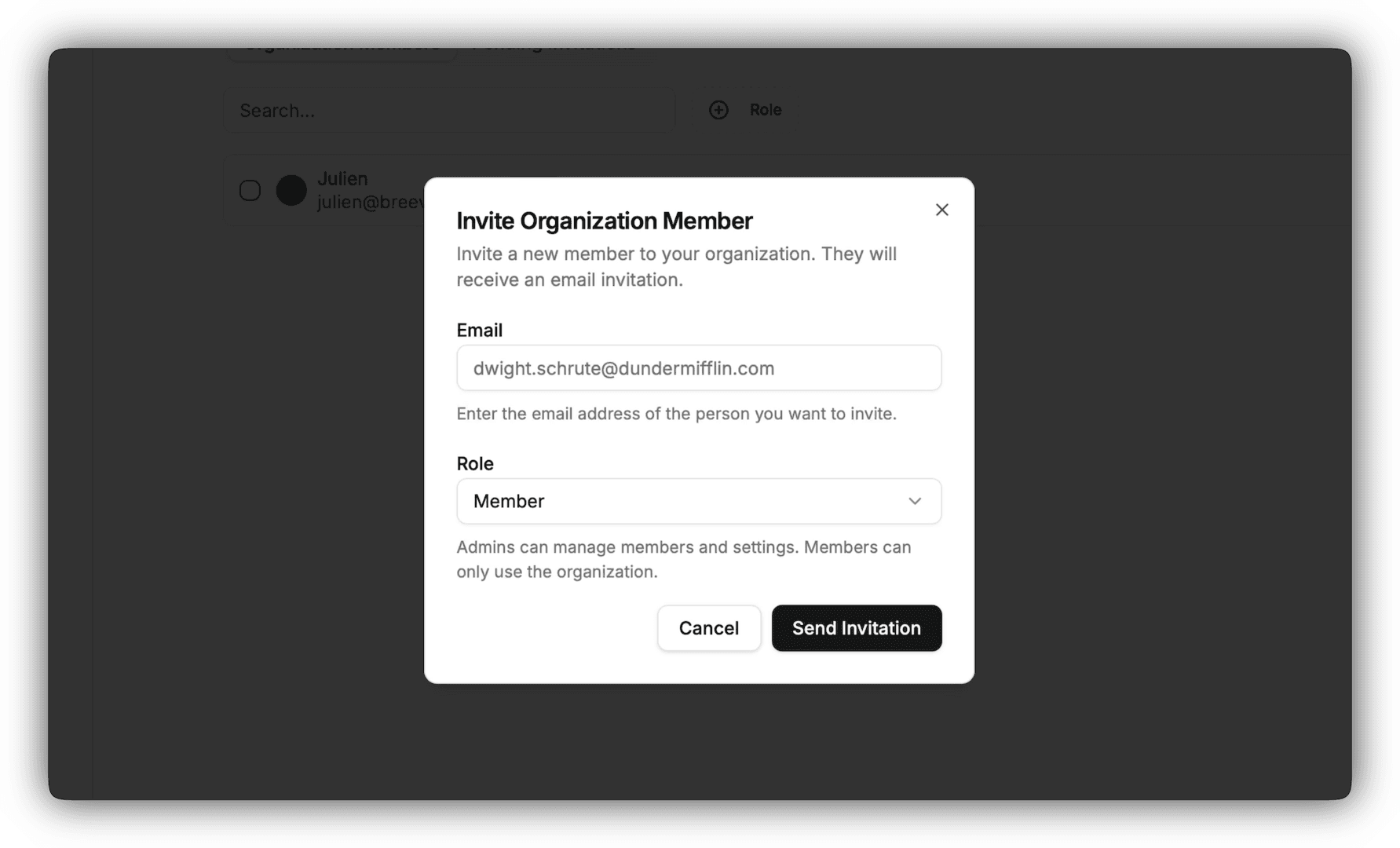
Click Invite Member
-
Enter the user’s email address
-
Choose a role between Member and Admin. Learn about organization roles
-
Click Send Invitation
Invited users will receive an email invitation to join the organization.
If the user is not yet a member of the organization, he will be enroled as a member.
Change member role
Only organization admins and owner have permission to change an organization member role
-
Find the member in the list
-
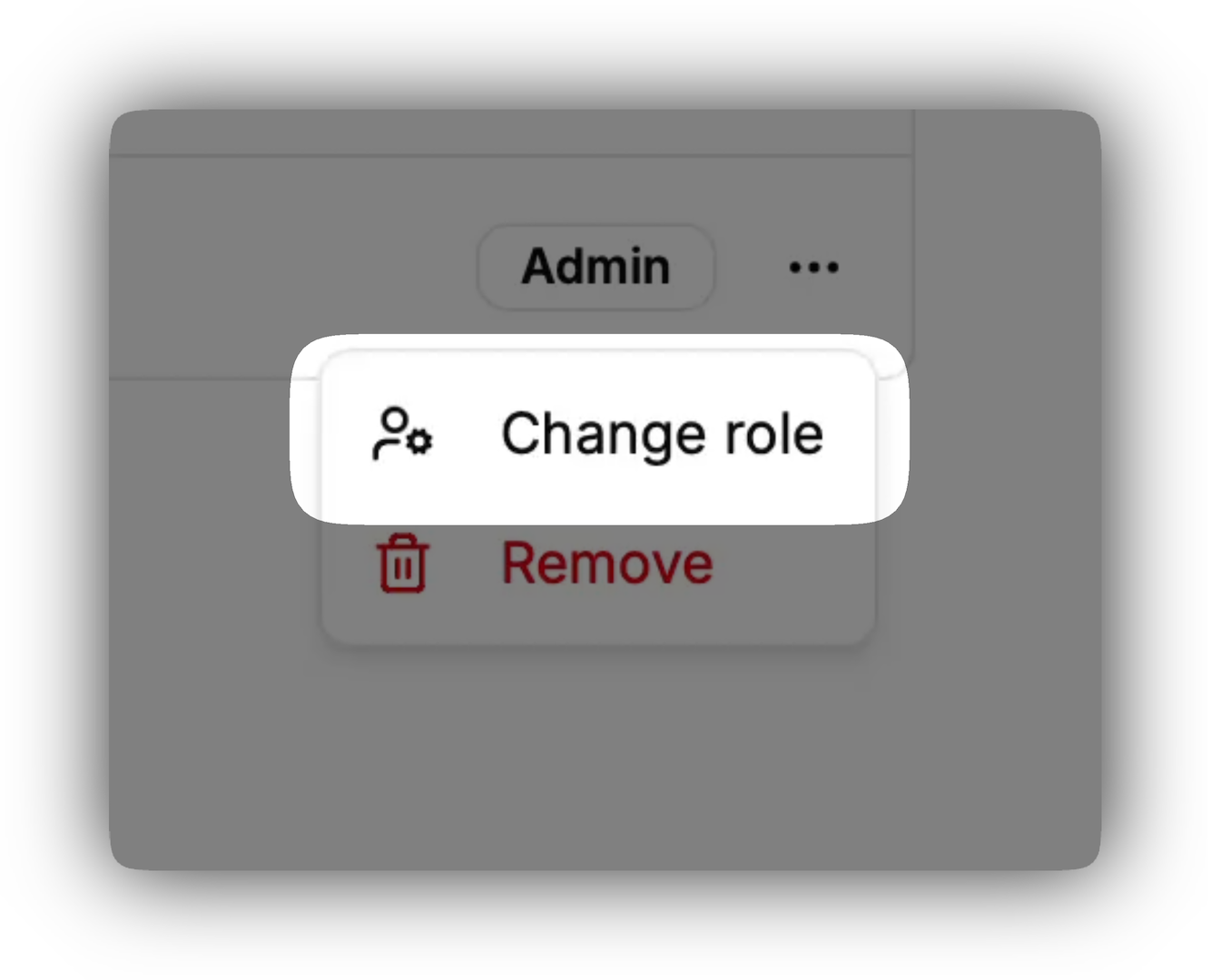
Click the more options button () in the row of the member
-
Select Change Role
-
Choose a new role from the dropdown. Learn about organization roles

-
Click Update Role
Remove a member
Only organization admins and owner have permission to delete a member from an organization
-
Find the member in the list
-
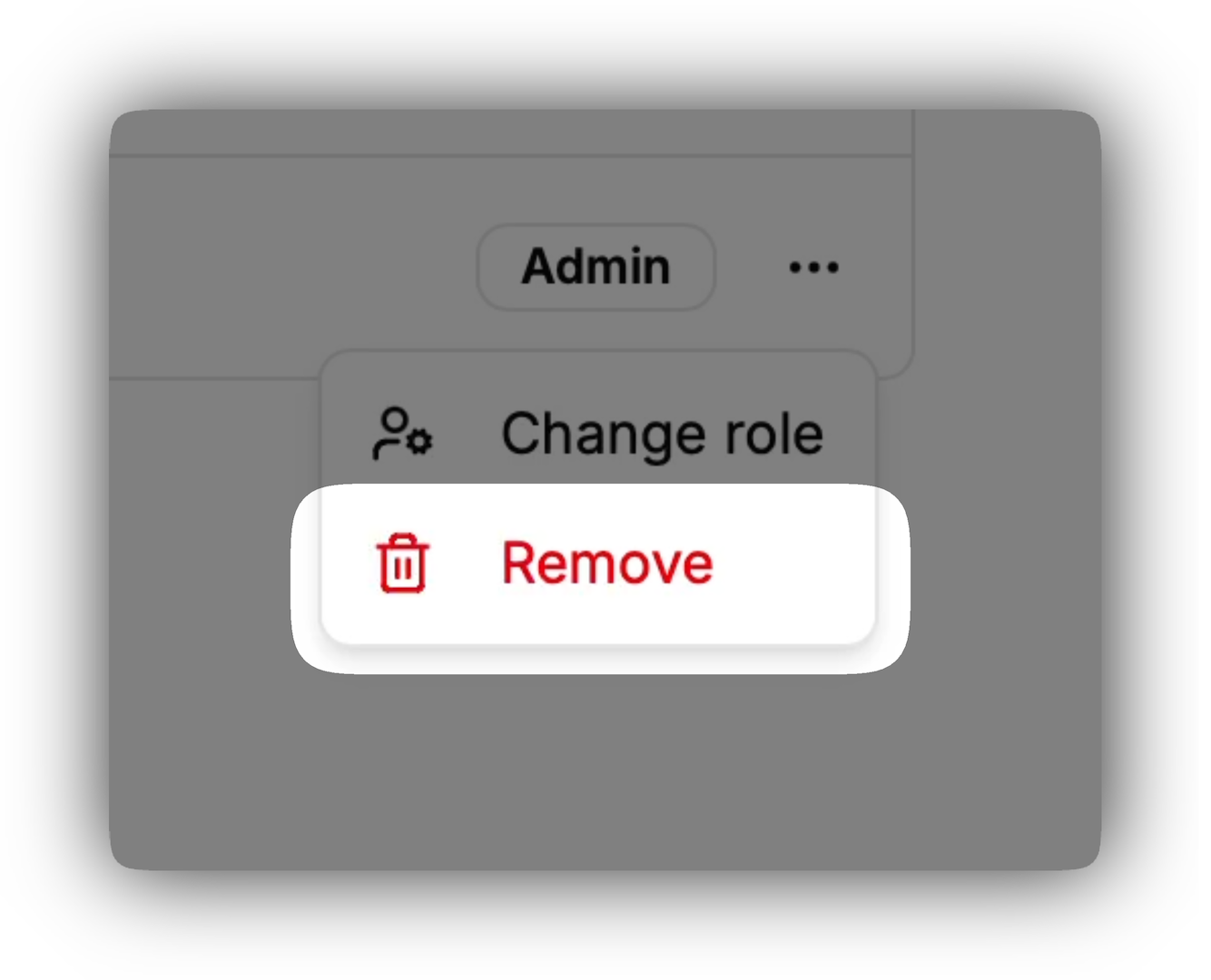
Click the more options button () in the row of the member
-
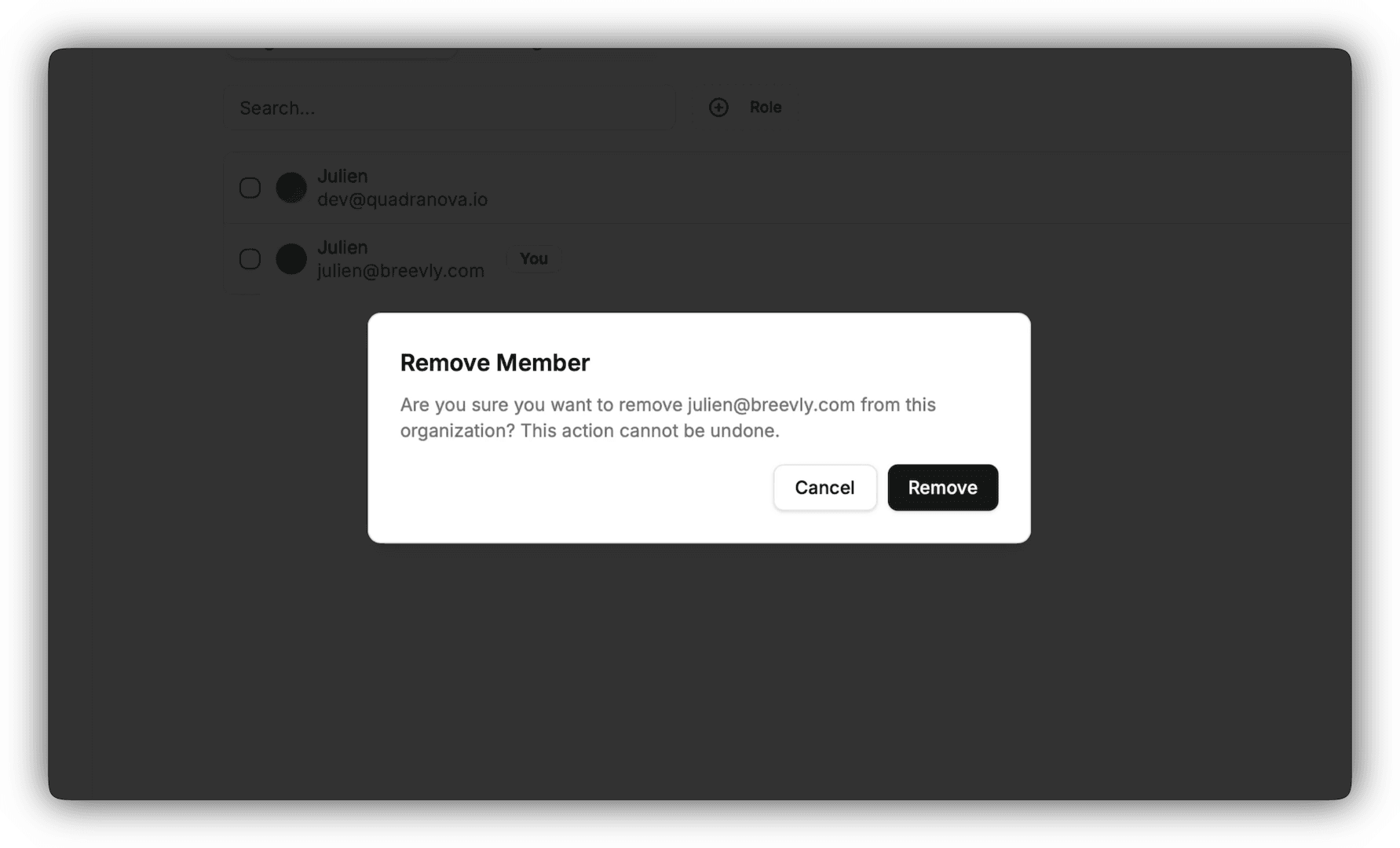
Select Remove
-
Click Remove
Best Practices
-
Regularly audit member roles and access
-
Remove inactive users to enhance security