Links / Workspaces
How to transfer links between workspaces?
Updated by Julien on October 15, 2025
You can transfer links from one workspace to another to reorganize your projects and campaigns. This is useful when you need to move links between different departments, projects, or teams within your organization.
Important notes
- When transferring a link to another workspace, all analytics data will be reset. This action is irreversible.
- Tags will not be transferred. You will need to add them again in the destination workspace.
- You can only transfer links to workspaces where you have the necessary permissions.
1
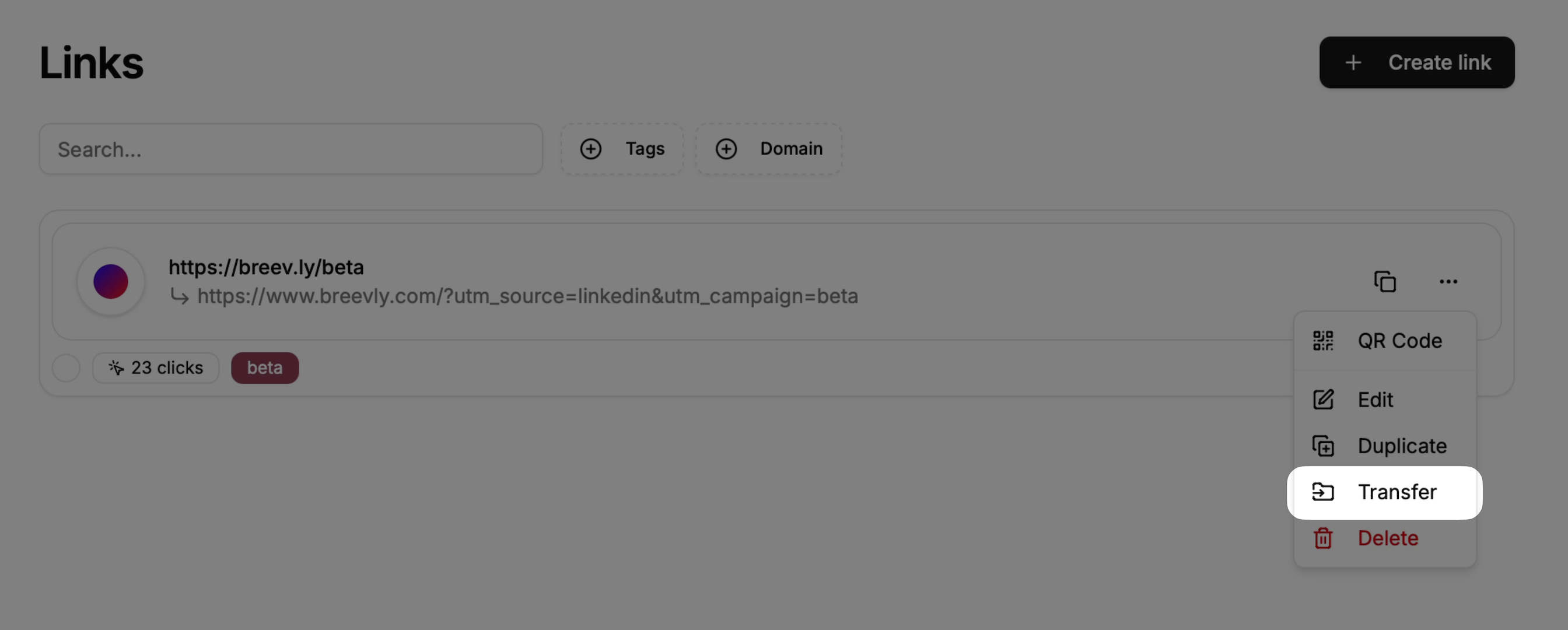
Open the link modal actions
Click on the more options button () available at the right side of your link row, and press on Transfer
2
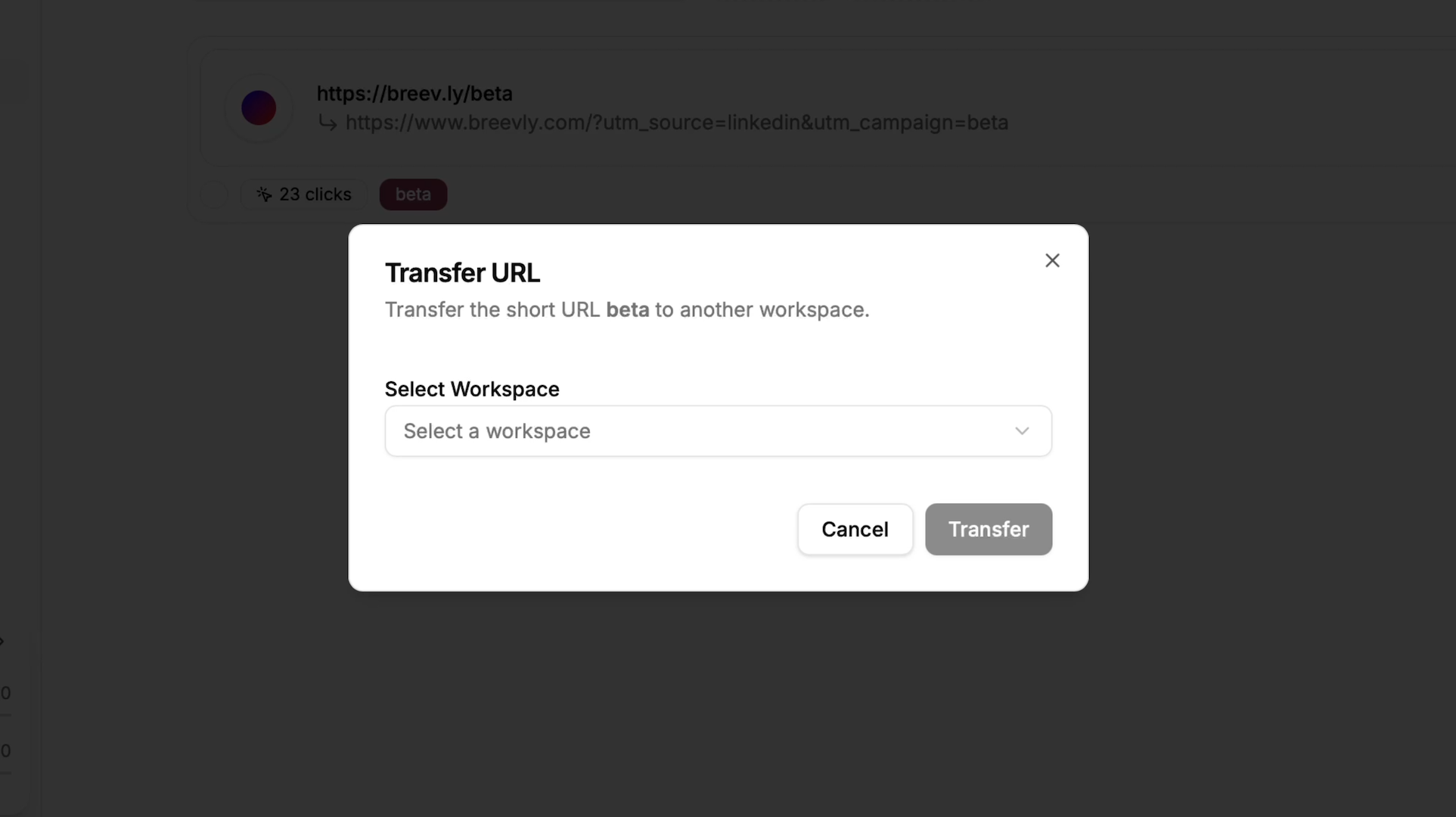
Select the destination workspace
In the dialog box, choose the workspace you want to transfer the link to.
3
Click on the Transfer button
To copy a link to another workspace, first duplicate it and then transfer the duplicate to the destination workspace.