How to configure link expiration?
This feature is available with our paid plans. Upgrade your plan to unlock password protection for your links.
Breevly lets you control exactly when access a short link should end. Setting an expiration date and time automatically deactivates the link once it reaches its deadline, while an optional fallback URL lets you redirect visitors to the right place after the original link expires.
Open the link form
From your dashboard, you can either:
- Create a new link by clicking on the Create link button
- Open an existing link by clicking on any row in the list
Add expiration options
-
Expand the Expiration card.
-
Select a date and time when the link should expire.
-
Enter a fallback URL where the user will be redirected once the link expired. (Optional)
Click on Create Link or Save Changes
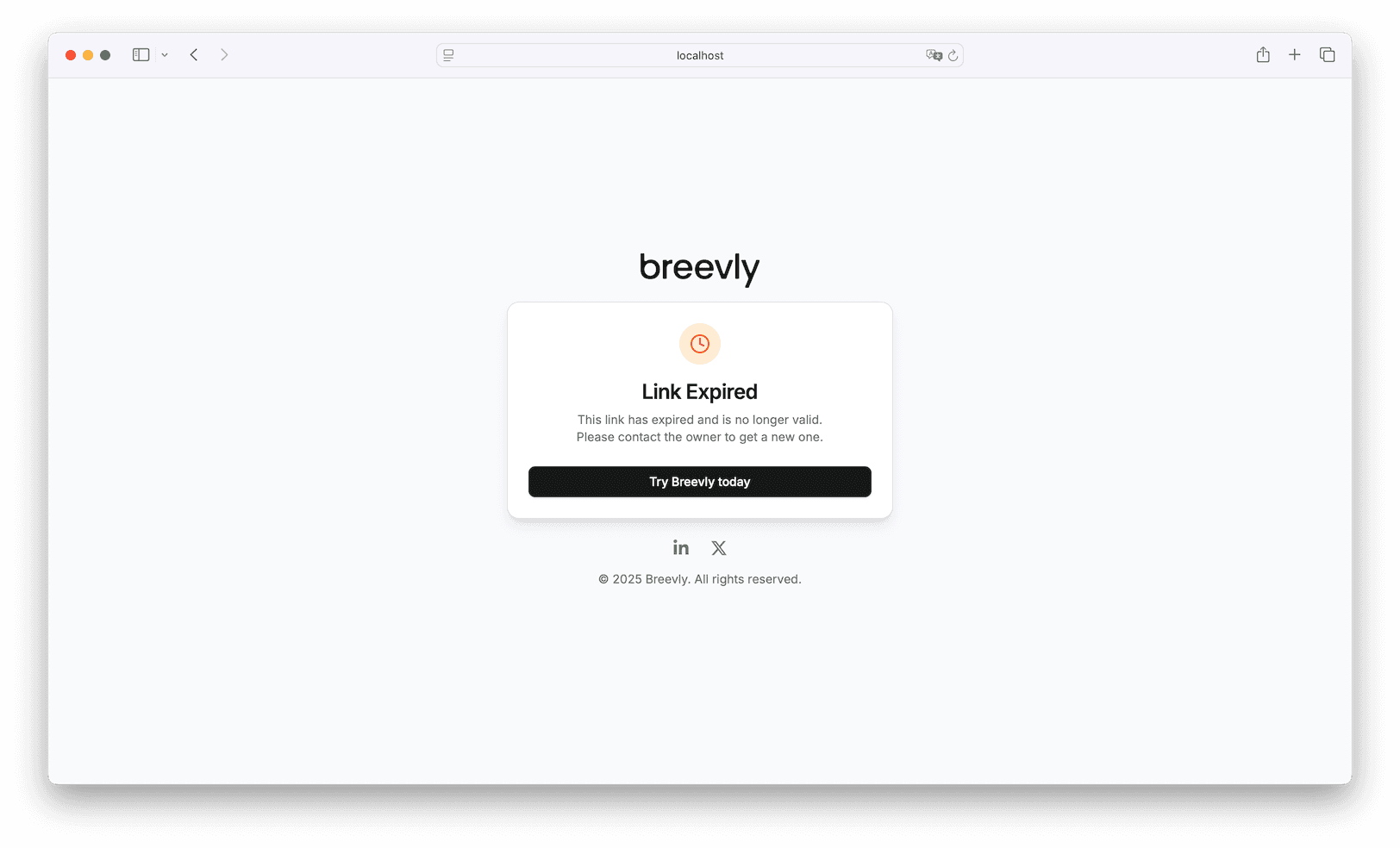
After the expiration date, anyone clicking the short link will see a message like “Link expired” or be redirected to a fallback page (if configured).
Redirection URL
Redirection URL is optional. If not provided, the user will be redirected to the screen below when deadline is reached.
Remove expiration
To remove expiration from a link:
- Open the link edit page
- Expand the Expiration card
- Click on the Reset Expiration button
- Save changes
Why add expiration to a link
- Time-bound campaigns: Ensure limited-time offers or event registrations automatically deactivate once the promotion ends.
- Compliance: Remove access to content that must only be available for a specific period due to legal or contractual requirements.
- Security: Prevent outdated or sensitive information from being accessed indefinitely by expiring links after use.